Three roles use this app. Most of this page is for the registrar, because that is where the judgment calls live. Trainer tasks are short. Admins start the day on the Overview (A1); the rest of their sections are set-up jobs that happen once a season.
Navy = the app does it on its ownOrange = you do itGrey = the trainer does it
Every diagram on this page uses those three colours the same way.
Your two screens: phone and desk
You have the same worklist in two shapes. Use whichever matches where you are.
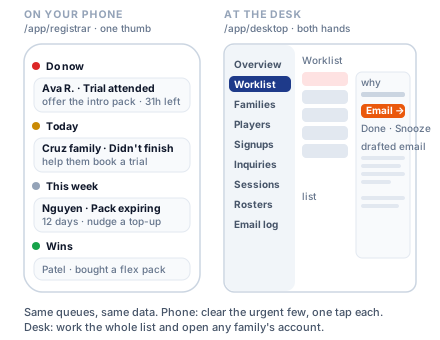
On your phone
/app/registrar (the Pipeline tab). One stream, bucketed Do now · Today · This week · Wins. Each card says why the family is there and has one action. Swipe right to email, swipe left to snooze. Tap a card for the family's players, credits and recent activity. The Families tab is a quick lookup.
At the desk
/app/desktop. You land on the Worklist: the same stream on the left, and on the right the reason, the family's credits and last contact, and the drafted email ready to send. The sidebar adds Families, Players, Signups, Inquiries, Sessions, Rosters and the Email log (R17). Logging in on a laptop takes you here automatically.
NoteTwo queues exist only at the desk: quiz inquiries (R7) and birthdays. The phone leaves them out on purpose so the thumb list stays short.
The worklist loop: read the why, act, remove when done
The whole job is one loop. The app decides who and why. You decide what to say, do as much as the moment needs (send the email, log a note, text them), then press Remove from worklist. Every step is logged, so you never wonder whether you already reached out.
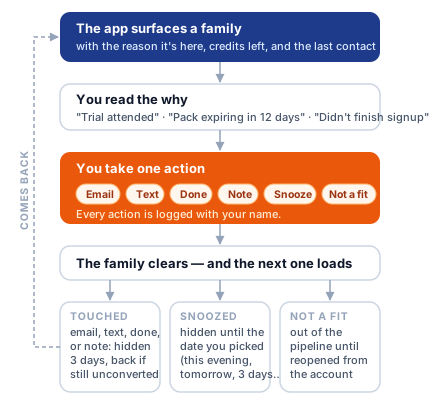
The actions
| Button | What it does |
|---|---|
| The main verb. At the desk the draft is on screen: Edit it, or Copy text. Pressing the orange button opens the draft in your own mail app to send from there and logs an "emailed" touch. The family stays on the list until you remove them. Same on the phone. See the note below about which address it leaves from. | |
| Text | Phone only. A short draft for the academy number. See R9. |
| Remove from worklist | You're finished with this family for now. Takes them off the list for three days (one day for a family who paid but has no day yet) and brings them back if they still haven't converted. Nothing is sent. |
| Note | Saves a line to the family's activity ("Left voicemail, wants a June start"). The family stays on the list. |
| Snooze | This evening · tomorrow morning · in 3 days · pick a date. Hidden until then, no touch logged. |
| Not a fit | Not interested or Lost. Removes the family from every queue. Reopen later from their account (R10). "Won" is never a button: buying is the win. |
Desk shortcuts: E sends, R removes from the worklist, J and K move to the next and previous family. On the phone, Remove and Snooze show an Undo toast for a few seconds instead of asking "are you sure".
How the drafts sound
Every draft is written in the registrar voice: warm, parent-to-parent, about this child by name, logistics up front, signed "Warmly, your first name". Coach Rizzo is mentioned in the third person. Edit freely, but keep those bones. The offer facts inside the drafts (price, session count, address) are maintained in one place by the admin, so never retype a price from memory.
It leaves from your mailbox, not the academy'sThe worklist drafts the email and hands it to your mail app — it does not send through registration@, and it will not appear in the console's Email log. Set your mail app to send as registration@azsoccerskills.com before you work the list, so families see one address and replies come back to the academy. (Group email from Rosters and Players is different: that one really does send from registration@.)
The touch is logged when you press the buttonNot when the mail actually goes. Close the draft without sending and the family still reads as emailed. If you back out, log a Note saying so before you move on.
Nevertell a parent to enter a promo code. The intro price applies itself at checkout for any family with no prior paid pack. There is no code box.
Every queue, decoded: why a family is here and what to do
Colour is urgency, and it decides the bucket. Red lands in Do now. Yellow is Today or This week. Grey is fine to leave until you have a quiet moment. Green is a win. Queues with red items open themselves.
| Queue | Why the family is here | Colour rule | What to do |
|---|---|---|---|
| Trained without a credit | A trainer added a walk-on and the family has no pack on the account. | Always red. Do now. | Same day: get them a trial, pack or membership. Drops off the moment they buy. R6. |
| New trials — welcome & convert | Trial paid in the last 14 days, not converted yet. Includes a family who paid first and asked us to find the day. | Yellow while the session is ahead. Red once it has happened — and red from day one when they paid first and we still owe them a day. | Three beats: welcome, then offer after attendance, or reschedule a no-show. A row marked needs a day comes first: agree a day today and get it booked — nothing is on the roster until then, and the row returns after 24 hours, not three days. R4. |
| Didn't finish signup | Registered but never bought a trial. | Grey, red after 3 days. Red sooner if they reached the payment page and left. | Help them book. The draft offers to hold the exact day they chose. R5. |
| New inquiries — quiz leads | Took the website quiz, hasn't registered. Desk only. | Red if they want to start this month. Yellow for 3 days, then grey. | Email invite, then Mark reached out. R7. |
| Quiet inquiries — no reply yet | Invited 3+ days ago, nothing back. Desk only. | Yellow, red at 7 days. | One nudge, or Close — no response. |
| Stale trials | Trial bought 14+ days ago, still no purchase. | Yellow from 7 days, red from 14. | Attended: "How was it?" plus the offer. Never attended: a plain re-book, no pitch. Paid but never booked a day: the row reads "we still owe them a day" — find it, no pitch. |
| Low balances — prompt renewal | Active family with 2 or fewer paid weekly sessions left. | Yellow. Red at zero, which is Do now. | Nudge a top-up before they run dry. R8. |
| Packs nearing expiry | Unused sessions expiring within 30 days. | Yellow. This week. | Get them booked in, or nudge a renewal. |
| Aging-out players | Within 30 days of turning 18. | Red if they still hold a usable pack. | A move-up conversation, not a surprise. |
| Birthdays this week | A player's birthday in the next 7 days. Desk only. | Red on the day, yellow within 2 days. | A quick note from the academy. |
| Frequent no-shows | 2+ no-shows in the last 60 days. | Yellow, red at 3+. | A friendly check-in. Something is usually in the way. |
| Recent conversions | First real pack bought in the last 30 days. The wins. | Green for 7 days, then grey. | Welcome them in and set up the first proper session. R8. |
Each row shows the last contact and credits left, so you never double-ping. A family can appear in two queues for two children on purpose: a converted sibling must not hide another child's pending trial.
The trial journey: three beats, gated on the trainer's mark
This is the highest-leverage part of the job. The app sends the logistics. You send the human part, and the trainer's attendance mark tells you which beat you're on.
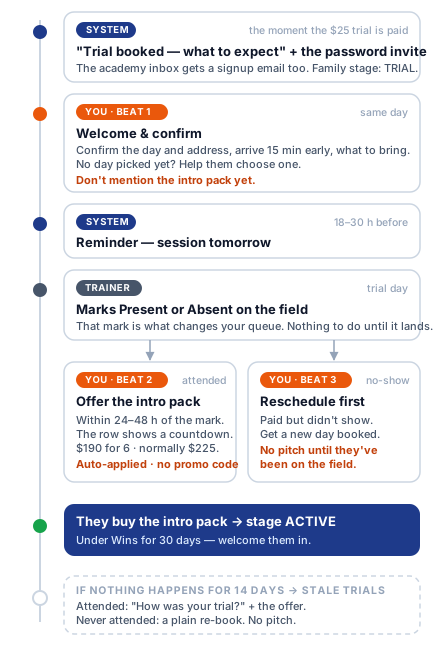
Beat 1 · Welcome and confirm you
Beat 1 has two shapes, and the row tells you which.
They picked a day. The family already has "Trial booked — what to expect" and a set-your-password invite from the app. Your welcome makes it personal: confirm the day and the address, ask them to arrive 15 minutes early so Coach can meet them, and say what to bring. Do not mention the intro pack yet.
They paid first and asked us to find the day. The row reads "Paid 1d ago — needs a day" (plus "wants Tue/Thu evenings" when they told us), sits above the plain welcomes, and comes back after 24 hours instead of three days. The app has already told them "You're in!" and that we would reach out, so this is a promise to keep today. The draft asks which days work and points them to Book in their account; if they used the pass's "Tell us which days work" button, their days are on the row — answer with a day that fits. Agree the day, then get it booked: they pick it under Book, or you add the player as a walk-on on that session from the session drawer (on a session that hasn't started yet, a walk-on is a booking, not an attendance mark). Nothing is on the roster until then. Once the day is set, the usual welcome applies. Do not mention the intro pack yet.
Beat 2 · Offer the intro pack you
Once the trainer marks the player Present, the row turns red with a countdown. Send the offer within 24 to 48 hours: the Flex Pack, 6 sessions for $190 instead of $225, and they choose their training days. Explain the why, not just the price: the intro pack is the low-friction next step that shows whether the player is a good fit before membership. After 7 days the row reads "last chance".
Beat 3 · Reschedule a no-show you
Marked Absent? Get a new day booked first. No pitch until the player has been on the field.
If they didn't love it you
Every trial carries a promise: if the player doesn't love it, the family tells us within 14 days of the trial and their next session is on us. It is a session, never money back. Nothing in the app tracks it, so you honour it: open the family → Comp a pack (the button at the top) → pick the child → Make-up session, with the reason "Love-it guarantee" (R12). Then help them book it.
The win app
When they buy, the family moves to ACTIVE and shows under Wins for 30 days. Welcome them in and help them book their first real session.
RuleAny email that says "your trial" must match reality. The only source of truth is the trainer's mark. Attended-but-stalled families keep the "how was it" plus offer; never-attended families get a plain re-book.
Didn't finish signup, and abandoned checkouts
These families filled in the registration form but never bought a trial. They are not cold leads: they wanted in and something got in the way.
- Plain incomplete signup. The draft invites them to book a trial. Reach out within three days; the row goes red after that.
- They picked a day and reached the payment page. The row shows the exact session they wanted, and the draft offers to hold that spot instead of asking "what day works?". If that day has passed, the draft offers to rebook.
- They already got one email from the system. About an hour after a trial checkout is left unpaid, the parent is emailed a link that picks up exactly where they stopped, on any device. It goes once, ever, and the row then reads "reminder emailed". The personal follow-up is still yours; just don't send the same thing again.
- They told us which days suit them. The row reads "Wants Tue/Thu evenings" and the draft answers with days that fit.
- They chose "Pay now — we'll find your day together" and left before paying. There is no day to hold, so the draft simply sends the link back to the picker. Nothing is owed until they pay; the moment they do, they leave this queue and appear in New trials as "needs a day" (R4).
NoteNothing is booked for a family until they pay. A chosen day is remembered so you can hold it, not because a place is taken.
Trained without a credit: walk-ons the trainer let on
Nobody is turned away on the field. A trainer can add a walk-on who has no pack, mark them present, and the row is flagged "No credit · flagged for the office". That family lands at the top of Do now the same day.
- Email or text the family: great to see the player, here is how to set them up (trial, pack or membership).
- The row clears by itself once anything is bought after that session.
- A session already trained without a credit is not deducted from a later purchase. If Coach wants it counted, open the family and tap − on the credits tile (R12).
Quiz inquiries: new and quiet
People who finish the website quiz become inquiries. They are not families yet: no account, no player record, just a name, an email and their answers. The desk shows them in two queues and one full book.
- New inquiries. The pane shows their quiz answers. Email invite opens a draft inviting them to a trial; then Mark reached out. Not a fit closes them.
- Quiet inquiries. Invited 3+ days ago, nothing back. Email nudge, then "Nudged — check back in 3d". Red at 7 days. Close — no response stops them resurfacing.
- Inquiries view (sidebar) is the whole book, every status, with filters, for when you want to see everything rather than just what's due.
NoteWhen an inquiry registers, the app links it to the new family automatically. You don't need to close it by hand.
Renewals, expiries, aging out, no-shows, birthdays and wins
The rest of the queues are about keeping families, not winning them. Each has one draft and one job.
- Low balances. Two or fewer paid weekly sessions left. Nudge a top-up while they still have a session to come back for. At zero the row is red and sits in Do now.
- Packs nearing expiry. Unused sessions with less than 30 days left. Get them booked in; nobody likes losing what they paid for.
- Aging out. Within 30 days of 18. Start the move-up or re-enroll conversation early.
- Frequent no-shows. A friendly "everything OK?" usually surfaces the real reason: a schedule clash, a lost interest, a sibling's season.
- Birthdays this week. Desk only. A two-line note from the academy. It costs nothing and families remember it.
- Recent conversions (Wins). They just bought their first real pack. Welcome them in, make sure their first session is booked, and add a note if they told you why they said yes.
NoteMembership renewals are automatic through Stripe and send no email yet. If a family asks when they renew, the Stripe dashboard (admin) has the date.
Texting a family: academy number only
Texts always come from the academy number, never from a personal phone. Families should recognise one number, and staff numbers should never reach parents.
- On the phone, tap Text on a row (the desk worklist is email-only). A short draft appears; edit it if you like.
- Copy for Google Voice copies the text and the number. Paste it into Google Voice and send.
- If one-tap sending is switched on (the button reads Send text →), it goes out directly and logs itself.
Either way the touch is logged as "texted" and the family clears with the usual cooldown. Guardian phone numbers on any row are tap-to-call.
Open a family account: what's in the drawer
Desk: Families in the sidebar, search by family, guardian or player name, click a row. The drawer slides in from the right. Every worklist row and every signup email link opens the same drawer.
The header
Family name, lifecycle stage pill (R15), and an outcome pill if they were marked Not interested or Lost. Quick buttons for the common things (email, text, Send app invite — R16). Everything rare lives in the ··· menu: Archive family and the pipeline disposition.
Three tabs
| Overview | Guardians (tap to call or email; Edit names and contact), players (age, gender, skill, school, medical notes; Edit including date of birth), every pack with credits left, and the account tools (R12). |
| Bookings | Upcoming sessions with Move and Drop, then recent attendance where you can set Present, Absent or Clear (R13). |
| Activity | One timeline of everything: your touches and notes, credit adjustments, bookings, membership agreements, app invites. This is where you check "did anyone already reach out?" |
Approve for membership
Membership has two locks in front of it: Coach's greenlight and a signed agreement. You approve each child, not the family. After a trial the drawer prompts "They attended the trial. If it's a fit, approve each one for membership" with a ✓ Approve button per child; each player row also has Approve for membership. Approving sends the approval email. If the drawer shows that email didn't go, tell the family yourself.
The parent then ticks which approved children go on the membership (one child is Single, two or more is Family). A sibling who isn't on it still needs their own pack. To undo an approval, click ✓ Approved on that player.
Not interested, Lost, and reopening
A dispositioned family disappears from every queue. Their account stays whole. To bring them back, open the family and click Reopen in pipeline.
How credits move: what a booking, a mark and a drop each do
Most balance questions from families come down to this one picture.
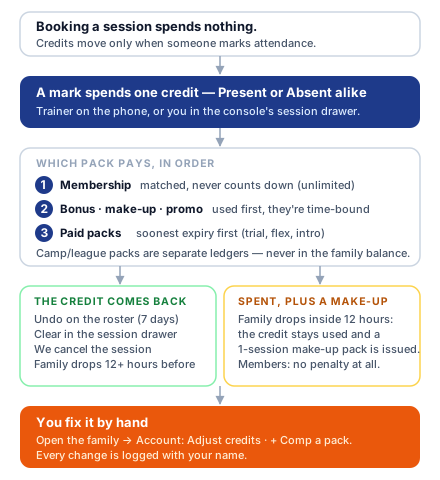
- A pack belongs to one player (since 2026-09-09). A sibling needs their own; there is no sibling discount on packs. Packs sold before that date are family-pooled and stay shared.
- The Flex Pack is 6 sessions, good for 12 months. The intro price ($190) applies to that player's first one; $225 every time after.
- A membership is unlimited weekly sessions for the children on it: matched at every mark, never counted down. You approve each player; the parent picks which approved children go on it.
- Camp and league packs track attendance for that program only. They never appear in the weekly balance, and they never trigger "running low".
Fix a balance, comp a pack, end a membership, move or drop a booking
All of it is buttons in the family drawer. Nothing here needs Stripe or Supabase any more, and every change is logged with who, when and why.
| − / + on the credits tile | Tap once per credit. A strip opens under the tiles asking which child (skipped when there is one pack), with room for a reason. Save, and that child's pack moves. Count a walk-on session, comp a make-up on a pack they already have, claw one back. With no pack on file, + opens Comp a pack instead. |
| Set exact balance | The quiet link on a pack row: type the exact sessions remaining. For fixing a miscount. Raising a pack above zero reactivates it. |
| Comp a pack | The button at the top of the family page. Pick the child first, then make-up session, flex credits, or a trial, and how many. $0, no Stripe charge. "Whole family" is only for the old pooled packs. |
| End membership | Stops the renewal at the end of the paid period. The pack shows "Ends <date>" and access continues until then. A comped membership (no Stripe subscription) ends immediately. |
| Move / Drop | On an upcoming booking: move the player to another session in the same program, or drop them. No credit moves either way. |
| Archive player / family | Soft-hide a duplicate, a typo account, or a household that left. Nothing is deleted; Restore brings them back. End any active membership first, or the app refuses. |
NoteA coach who marked the wrong player doesn't need you: they tap Undo on the roster within 7 days and the credit returns itself. You'll see it in the family's Activity as "Attendance mark undone by staff".
Mark or fix attendance from the desk
Marking on the field is the trainer's job (T1). You review, and fix, from two places.
A whole session
- Sessions in the sidebar shows the week's coverage. Click a session.
- The drawer shows booked, present, absent and unmarked counts, then the roster with Present / Absent per player. Each saves instantly and moves the credit.
- Add a walk-on books someone who turned up unbooked. On a session that hasn't started yet it only books the player, with no attendance mark — that is how you put a paid trial onto a day (R4). Announce a change is R18.
One family
Open the family → Bookings → recent attendance. Present and Absent spend a credit; Clear returns it and sets the booking back to unmarked.
LockAttendance is editable for 7 days after the session, then it locks. Admins are exempt. If a trainer forgot a session more than a week old, ask an admin.
LeagueDevelopmental League practices and games are not in this app. Their attendance and availability live in BAND.
When a family wants out: who acts and what they get
Four products, four rules. The word on the family side is Drop, never "cancel": there are no refunds, a credit simply comes back or doesn't.
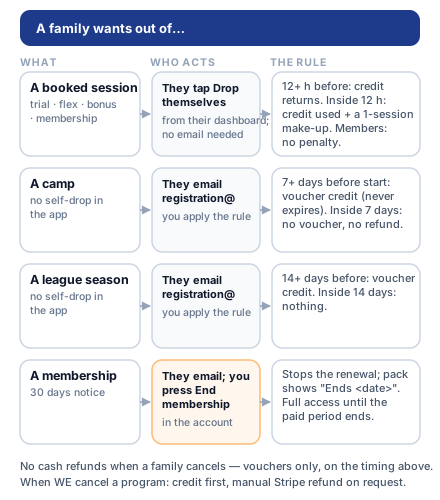
registration@, and you apply the rule.Vouchers
A camp or league voucher is a credit on the family account for the amount they paid. It never expires and applies at their next checkout. There is no drawer button for it yet: an admin issues it in Supabase (A11). Reply to the family first, then pass it on.
When we cancel
Different rules, because the family did nothing wrong. Cancelling a session returns every credit. Cancelling a whole program emails each family that anything paid can go toward other sessions or programs first, or be refunded on request. Refunds are manual in Stripe by an admin.
Lifecycle stages: the pill on every family
The stage pill is a summary the app maintains by itself. You never set it.
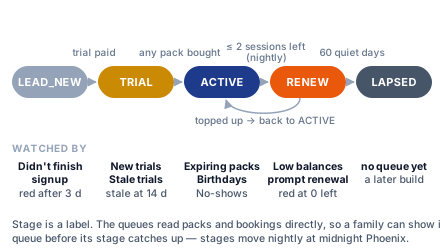
Stages move at midnight Phoenix (the nightly jobs) and on purchases. The queues don't wait for that: they read packs and bookings directly, so a family can be in "Low balances" the evening before its pill says RENEW.
App invite and "set your password" links
A family gets a set-your-password invite automatically the first time they buy. Until a guardian actually signs in, the family's automated emails stay off.
- Open the family. In the header, Send app invite (or Resend app invite) sends the primary guardian a fresh link. Repeat sends are fine until they've logged in.
- The button is missing when there's no primary guardian email, the family is archived, or someone already signed in. Fix the email first, or point them to
/login/forgot. - "Already exists" means the email has a login the app couldn't link. Tell them to use Forgot password on the login page; it works for them.
Admin fallback: Supabase → Authentication → Users → the email → Send password reset.
The other console views and what each is for
| View | Use it when |
|---|---|
| Overview | The morning briefing, in the order you act: one line on today (sessions, birthdays), what needs you (with the worklist counts underneath), the academy in four numbers (families, active, sessions owed, app accounts), new business over the last 30 days, and the programs running and coming up. Every number opens the screen behind it. Read-only. |
| Signups | A feed, newest first, of registrations, trials, purchases and conversions. The academy inbox gets the same events as emails with a link that opens the family here. |
| Inquiries | Every quiz lead, whatever its status. R7. |
| Families | Search and open any account. The tabs pick a stage (each shows its count); Filters adds birthday this week, running low, has sessions left or no app account, and shows not-interested, lost or archived households. What's applied reads as a sentence above the list; click ✕ on any part to drop it. |
| Players | Tabs pick an age group (each shows its count); Filters adds skill, gender, family stage or tag. Export CSV for a spreadsheet. Select rows to Email these families or add / remove a tag in bulk (R19). |
| Sessions | Week-by-week coverage. Click a session for its roster and attendance (R13) or to announce a change (R18). |
| Rosters | Enrollment per program. Open one to view, Print roster, or Email roster. |
| Email log | What actually went out through Resend and whether it landed. Check here before telling a family "we sent it". |
Programs, Reports, the Audit log and Setup are admin-only and don't show in your sidebar.
Announce a change: what families see, and how fast
An announcement is for a same-day change on a session that is still happening: a weather call, a time shift, a field swap, a guest coach.
- Sessions → click the session → Announce a change. (Admins also have it on
/app/admin-sessions.) - Pick a Type: General update, Time change, Location change, Cancelled, Weather. It colours the chip families see.
- Write a short Headline ("Tonight moved to 7 PM"). Add a body if there's more.
- Leave Also email the booked families on if it's time-sensitive. Switch it off for a gentle in-app heads-up.
- Post.
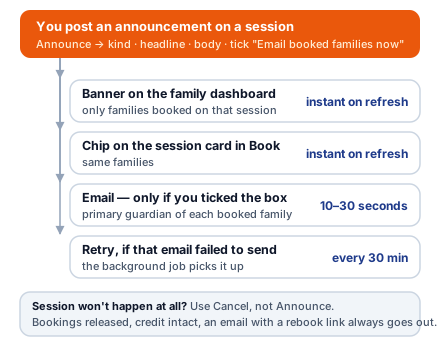
When in doubt
- Same-day change? Tick the email box. A banner alone won't reach a parent who isn't in the app.
- Inside two hours? Tick the box and text (R9). Parents mid-commute read texts, not email.
- Next week's heads-up? Banner is enough. The automatic day-before reminder repeats it.
- Session won't happen at all? Ask an admin to Cancel it (A3). That releases the bookings, keeps every credit, and always emails with a rebook link.
Forgot to tick the email box? Post a second announcement with it ticked. Each announcement is its own row, so a family who dismissed the first still sees the second.
Email a roster or a filtered list, print a roster
Targeted group email goes out from registration@ to a list you pulled. This is the source of truth, not a marketing tool: keep it to the families concerned.
A program's roster
- Rosters → click the program.
- Email roster opens a compose box addressed to every registered family. Subject and sign-off are prefilled.
- Print roster (or Cmd+P) gives # · Player · Age · Gender · Skill · Guardian · Phone · Notes, with a blank tick column for paper.
A filtered group of players
- Players → pick an age tab, then Filters for skill, gender, family stage and tag.
- Tick the rows (or all), then Email these families. One email per family, not per child.
- Or Export CSV to work in a spreadsheet.
TagsThe same selection can Add tag or Remove tag across everyone ticked. Tags show on the trainer's roster, so "Goalkeeper" or "Tryout invite" reaches the field.
Take attendance on the field
/app/trainer. Every trainer sees every session: whoever is on the field opens it and marks it. Today's sessions come first, then the next ten days; recent ones sit under Earlier.
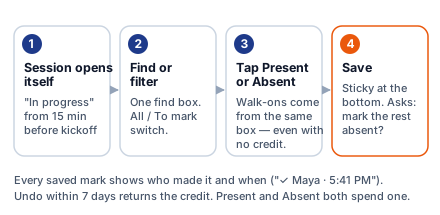
- The running session opens itself 15 minutes before kickoff. Earlier, tap the card.
- Find box: type a name to filter every age group at once. All / To mark switches to just the players still unmarked.
- Tap Present or Absent. Rows stay put until you save, so a mistap never vanishes under your thumb.
- Save sticks to the bottom with the unsaved count. If players are still unmarked it asks once: Mark N absent and save, or Save only what I marked.
Walk-ons
Type the name in the same find box. Anyone in the player list who isn't on the roster is offered as a walk-on; tap to add, preset to Present. No credit on the account? They're still added and marked, the row shows No credit, and the office follows up (R6). Wrong name? Remove works while the row is unmarked.
Undo, not the other button
Present and Absent both spend a credit. Marked the wrong player? Tap Undo next to the "✓ saved" tag: the row goes back to unmarked and the family's credit returns. Switching to Absent instead just relabels a credit that's already gone. Undo works for 7 days; after that the session locks and only an admin can change it.
Two trainers, one roster
Every saved mark carries a name and time ("✓ Maya · 5:41 PM"). The roster refreshes when you come back to the app and every 45 seconds while open, so the other trainer's marks slide in. Your unsaved taps are never overwritten. Once the session has started, Close out attendance lets a second trainer mark the remaining no-shows without re-marking anyone.
LeagueDevelopmental League practices and games don't appear here. Their attendance lives in BAND.
Look up a family from the field
The Families tab (/app/families) is every staff member's read-only lookup. Search by family or player name, tap for the detail sheet.
- Players first: age chip, gender and skill, school, medical notes, recent coach notes.
- Guardians: tap the phone to call, the email to write.
- Credits and packs: what's left at a glance.
It is deliberately view-only. Outreach, credit fixes and membership changes are the registrar's (R10–R12).
At a deskPrograms, Reports, Locations and Tags are in the console sidebar. The /app/admin-… links below open the same jobs on any screen.
The Overview's Needs you: what each row means
The console opens on the Overview. One line tells you about today, then the blue Needs you box lists what is waiting on a decision, most urgent first. Each row says why in a sentence and has one button, and the button opens the exact thing the row names: the program's page, the sessions ringed on the week grid, the families waiting, the walk-on on the worklist, or the emails that bounced. Empty reads "Nothing needs you right now."
| Row | What it means | What to do |
|---|---|---|
| Players trained without a credit | A trainer let a walk-on play and the family has nothing to pay for it with. | Open lands on that family in the worklist. The registrar gets them set up (R6). |
| A program has ended | Its last session has passed and nothing in the same series is scheduled after it, e.g. Fall Block 1 is over and Block 2 isn't set up. | Open is the program's page: set up the next block (A2, or Duplicate in A7), or Archive it if the series is done. |
| A program has no sessions scheduled | It is live but has no published session ahead, so families can't find it on the catalog. | Open is the program's page: add sessions (A2). |
| Draft sessions aren't published | Only published sessions can be booked. | Open is the program that holds them: Publish all under When, or cancel any that shouldn't exist (A3). |
| Sessions are full this week | A session reached its soft cap. | Sessions rings the full ones on the week grid. Add capacity or another session. |
| Waiting on a membership decision | A player attended a trial and hasn't been approved or marked not a fit. | Open is Families filtered to exactly those (Waiting on a decision). Open each and approve the child, or mark not a fit (R10). |
| Bookings never got marked | A session in the last 7 days has players with no Present or Absent. | Sessions opens the week grid with last week included and the unmarked sessions ringed. Mark them there (R13). Credits only move on a mark. |
| Emails didn't land | Bounced or blocked in the last 7 days. | Review opens the Email log on Problems only. Fix the address on file. |
| Possible duplicate families | The same household signed up twice. | Review, pick the one to keep, merge. |
Under the box, one line counts the registrar's worklist: to do now, today, this week. Below that are four numbers for the academy, new business over the last 30 days, and the programs running and coming up. Every number opens the screen behind it.
PhoneThe admin home on your phone (/app/admin) shows only the set-up rows: programs with nothing scheduled, drafts and full sessions. "Sessions with no trainer" is deliberately never flagged; trainers aren't assigned per session.
Schedule a batch of recurring sessions
- Open
/app/admin-programsand tap the weekly program (or New program → Start blank → Weekly block). - Under When, tap + Add dates. Pick the day(s), the First day and how many Weeks.
- Set start and end time. The preview lists every date: tap ✕ on a holiday to skip it.
- Leave Publish them now ticked and tap Add sessions. On a draft program the dates go live when you publish it.
SaturdaySaturday Skills & Scrimmages starts at 8:00 AM through the Fall 2026 block (to December) and 8:30 AM from the Winter 2027 block. It is built as one program per season block, so each block carries its own start time.
Edit, announce or cancel a single session
Fastest: /app/admin-sessions, every upcoming session grouped by day with a booked count. Filter by program or date. The same actions sit behind the ··· on each session row under When, on the program's page in /app/admin-programs. There the sessions are grouped by week (by month for a weekly block), with the type and the booked count on each row; tap a week to open or close it.
- Edit: change the date or time for that one day.
- Announce: a banner for booked families, with an optional immediate email. Full detail in R18.
- Cancel: releases every booking with no credit spent. Add a reason and leave Email booked families now ticked: they get an email saying it's cancelled, that their credit is intact, with a link to rebook.
A cancelled session can't be un-cancelled. Add a fresh date and rebook the families by hand.
Add a new camp or league end-to-end
Same flow for both. The Type you pick drives the welcome email and the pack label. A program is Draft → Live → Archived: families see nothing until you publish.
/app/admin-programslists one row per season under Running now and Coming up: dates, town, days and time, and a coloured status. Tap a season with divisions to open them underneath; tap a division to open it. Then New program: copying last season is quickest (A7); for a new one tap Start blank.- Basics: tap Camp or League, then the Type (Manage types adds or renames one). The kind and type can't change after the first save. Pick the Location (New location adds a venue).
- Name: follow the convention, like Summer Camp 2026 — Week 2 (Jun 16–20) or Indoor League 2027 — Spring · Division 1 (Mar 23–May 14). Naming guide shows the pattern. Under the box, the family card shows exactly what a parent sees on the catalog: the series plus a small pill. The year and dates are for the receipt and Stripe.
- When: days, First day, number of weeks, times. ✕ any holiday. A league starts on Tue + Fri for 8 weeks.
- Price & registration: Early bird and Until (filled at three weeks before the first day), then the full price. Families see both; checkout charges whichever applies that day. On a camp, How families pay is Every day, one price or Pick days from a bundle (bundles like 5 or 10 days; families pick their days after registering). A bundle can carry its own early bird price and can be marked "this bundle is the discount" so sibling and member discounts don't stack and promo codes are refused. Registration opens / closes and "Not on sale yet" sit below; the key dates show as steps with today marked.
- Who it's for (fold): ages and skill (catalog filters, never blockers), capacity (sales stop there, then a waitlist; a league division is 56), the roster you're aiming for, divisions.
- What families read (fold): description, photo, and a welcome line for the registration email.
- Schedule: under When, a strip shows the evening at that venue (your reservations, this program, every other program) with the venue's staff notes. The checklist's Schedule group warns about an overlap with another program, a session outside your reservations, a closed date, or an outdoor session that ends after dark. Warnings never stop Publish. Reservations, closed dates and lights are set in Setup → Locations, and every one can be edited or removed any time: agreements move. An extra hour this week is a reservation with Just one date ticked.
- Leagues stay on BAND: a league's sessions have no Announce, and a changed time or cancelled session reminds you to post it in BAND. Put the band.us link in the description so the confirmation page shows the BAND button.
- Before you publish, beside the page, updates as you type. Anything that blocks shows there with Fix ›, and on the field itself in amber. When it's clear, tap Publish: that saves, creates the Stripe prices, makes every session bookable and puts the program on the catalog. Save draft keeps it hidden.
Description is load-bearingIt renders on the checkout page and in the welcome email (A5). Leave it blank and the family sees name, date and price with no context, on the page and in the email.
Odd dayA Friday that runs long? Create at the common time, then Edit the one session.
Edit the welcome content for a running program
The Description renders in two places: the checkout page above "Pick which players to register", and the welcome email after purchase.
Put in
- A one-line welcome. Action items for now: gear, joining BAND, the volunteer form.
- How the week works (Wed = trainer sessions, Sat = games). Division split and format if relevant.
- Links: they auto-link in both places. Plain text with line breaks is fine.
Leave out
- The schedule and the location. Both already render below and above it.
- Per-session news. That's an announcement (R18).
Mid-season edits reach new registrations immediately. Already-registered families are not re-emailed; use an announcement for anything material. Keep a season template in a notes app and swap the dates.
Pull a league roster for division and team building
Printable roster (fastest)
/app/desktop → Rosters → the league → Print roster. Columns: # · Player · Age · Gender · Skill · Guardian · Phone · Status · Notes, with a blank tick column on paper. The registrar can do this too (R19).
Who paid, when
Reports → Lists → Payments lists every payment in a date range from Stripe, with the family and what it was for. New families → Program pages shows looked → started checkout → paid per program (A12).
Raw export
For a spreadsheet, Players → filter → Export CSV covers most needs. For a per-program pull with guardian contact, run this in the Supabase SQL Editor (the project with the families table):
-- The same players the console roster shows: registered for the
-- program (their pack) or booked on one of its sessions.
with roster as (
  select pk.player_id from packs pk
   where pk.program_id = 'PROGRAM_ID_HERE' and pk.player_id is not null
  union
  select b.player_id from bookings b
    join sessions se on se.id = b.session_id
   where se.program_id = 'PROGRAM_ID_HERE'
     and b.status in ('confirmed', 'attended', 'no_show')
)
select
  p.first_name, p.last_name, p.date_of_birth, p.gender, p.skill_level,
  p.notes as medical_notes, s.name as school,
  f.display_name as family,
  g.email, g.phone
from roster r
join players p on p.id = r.player_id
join families f on f.id = p.family_id
left join guardians g on g.family_id = f.id and g.is_primary_contact = true
left join schools s on s.id = p.school_id
order by p.date_of_birth;
Replace both PROGRAM_ID_HERE with the program's ID: open the program under Rosters in the console and copy the long code after program= in the address bar. Export → CSV in the editor toolbar.
Run last season again, change a price, archive
Duplicate
/app/admin-programs→ New program.- Copy a season copies every division or group of a season at once: pick it (Indoor League · Winter), the new season (Spring is suggested) and the first day. Or Copy one program: pick it, the first day, and how many in a row (a four-week camp = 4). The same two live in each program's ··· menu, and Copy season sits on every season heading in the list.
- Preview shows the suggested names (year, season or Week 1…N, new dates), plus each one's early bird and closing date. Edit any name. Create N drafts.
- Each draft carries description, photo, price or bundles, the early bird and registration dates (same distance from the first day), ages, skill, capacity, roster target and divisions. It keeps the same number of sessions and skips closed dates; the preview lists any it skipped. They land under Drafts; publish each when ready.
Change a price on a live program
Open it, change the price, tap Save changes. You're told how many families already registered; they keep what they paid. Stripe gets a new price behind the same key automatically. Renaming pushes the new name to Stripe too.
Season over
··· → Archive keeps history and hides it from families. Cancel program… is for calling one off (A8). Archived programs live under the Archived tab, with Restore as draft.
Cancel or delete a whole program
Three intents, three tools, all in the program's ··· menu.
| Delete | A mistake nobody booked. Erases the program and its sessions and archives the Stripe product. Refused if even one booking exists. |
| Cancel program… | Calling off a season people registered for. Archives it, cancels every upcoming session, releases every booking with no credit spent, archives the Stripe product, and (if ticked) emails each family once with your reason: paid amounts go toward other sessions or programs first, or a refund on request. Refunds stay manual in Stripe. |
| Archive | Simply done for the season. Hides it from families and stops sales; sessions and history untouched. |
Add a venue
/app/admin-locations- Name, address, indoor / outdoor. Indoor drives the "sneakers, not cleats" copy families see.
- Public notes for families ("Enter via south gate, park in lot B"). Internal notes for staff (gate codes, weather plan).
- Add. Retire with Deactivate: history keeps it, new sessions can't use it.
Add or rename a player tag
Tags are short labels on a player (Goalkeeper, Left-foot, Returning camper, Tryout invite) that show on the trainer roster.
/app/admin-tags→ type a name → Add tag.- Rename propagates everywhere the tag is used. Deactivate hides it from pickers but keeps it where applied.
- Show to families is the one that leaves the building: the tag becomes a navy chip beside that child's name on the family's home and player page, so tagging a player Fusion is how they learn they're in it. Off for every other tag, and off is the default on a new one. A Fusion-tagged child also gets a line telling the family their session times and attendance stay in BAND.
Assign tags in bulk from the console's Players view (R19).
If something looks wrong in the data
First, the drawer. Free session, balance fix, end a membership, move or drop a booking, archive, restore: all buttons in Families → Account (R12), logged automatically. Reach for Supabase only for what's below.
- Issue a voucher by hand: insert into
family_creditswithkind=issuance,amount_cents,reason,family_id. - Attendance older than 7 days: admins can still edit it in the trainer app or the console. Only if that fails, update the booking row and record it in the audit log.
- A purchase made no pack: Stripe → Webhooks → did the event return 200? Then the Cloudflare log for
/api/stripe/webhook. - An email "never arrived": the console's Email log shows what Resend sent and whether it was delivered.
Two Supabase projectsThe SQL editor opens whichever you used last. This app's project has a families table. Check before running anything.
Read the Reports, and pull a list
Reports in the console sidebar (or Admin → Reports on a phone). Pick a range at the top; Last 12 months is the default. Each tab answers one question:
- Summary: the six numbers that matter, visits by month, and what's worth a look.
- Money: what came in after refunds, Stripe's fees, failed payments, what it was for, and how membership income moved. Read straight from Stripe.
- Members: memberships running, joined and ended, renewals in the next 30 days, players approved but not on one.
- New families: the ladder (registered → trial → came → intro pack → approved → member), how they heard about us, program pages.
- Sessions: how full each slot runs against its target roster, who's in the pods, how often players come.
- Coming back: who returns after their first month, when players last came, who's slipping.
Pull a report
Click any number with a link under it to see the names behind it, or open Lists for all of them: payments, membership roll, renewals, sessions owed, new families, trials, stuck on the ladder, attendance, no-shows, slipping, win-back, birthdays, contacts. Download saves the list as a CSV for Numbers or Excel; on the other tabs it saves the page's numbers.
How they heard about usBoth sign-up forms ask it as the last, optional question, so New families fills in from 28 October 2026 onward. Every family before that is blank — the tracker never asked. A family's answer, or the gap, also shows on the bottom line of their drawer. There's nowhere to type one in yet: if a family tells you on the phone, log it as a Note.
Attendance firstVisits, no-shows and slipping only count sessions a trainer has marked. When the blue band says attendance isn't being marked, those numbers read low until it is. The tracker's year (Sep 2025 – Aug 2026) counts for visits and who came back, never for no-shows.
Let one family register after registration closed
Registration closes and a family asks anyway. Don't move the closing date — that reopens the program to everyone on the catalog. Send them a link instead.
- Open the program → ··· → Registration link….
- Choose how long it works (7 days by default) → Make the link. It copies itself; paste it into your email or text to them.
- They register as normal — the same form, the same questions, the same checkout — and pay the full price. The early bird is over by the time a program closes.
RuleOne link, one program: anyone holding it can register until it expires, so send it to the family who asked rather than posting it. It only works for that program, nothing on the catalog changes, and a full roster still sends them to the waitlist.
An expired link tells the family to email us. Make a new one the same way.